How to Edit Photos on Your Phone to Look Professional
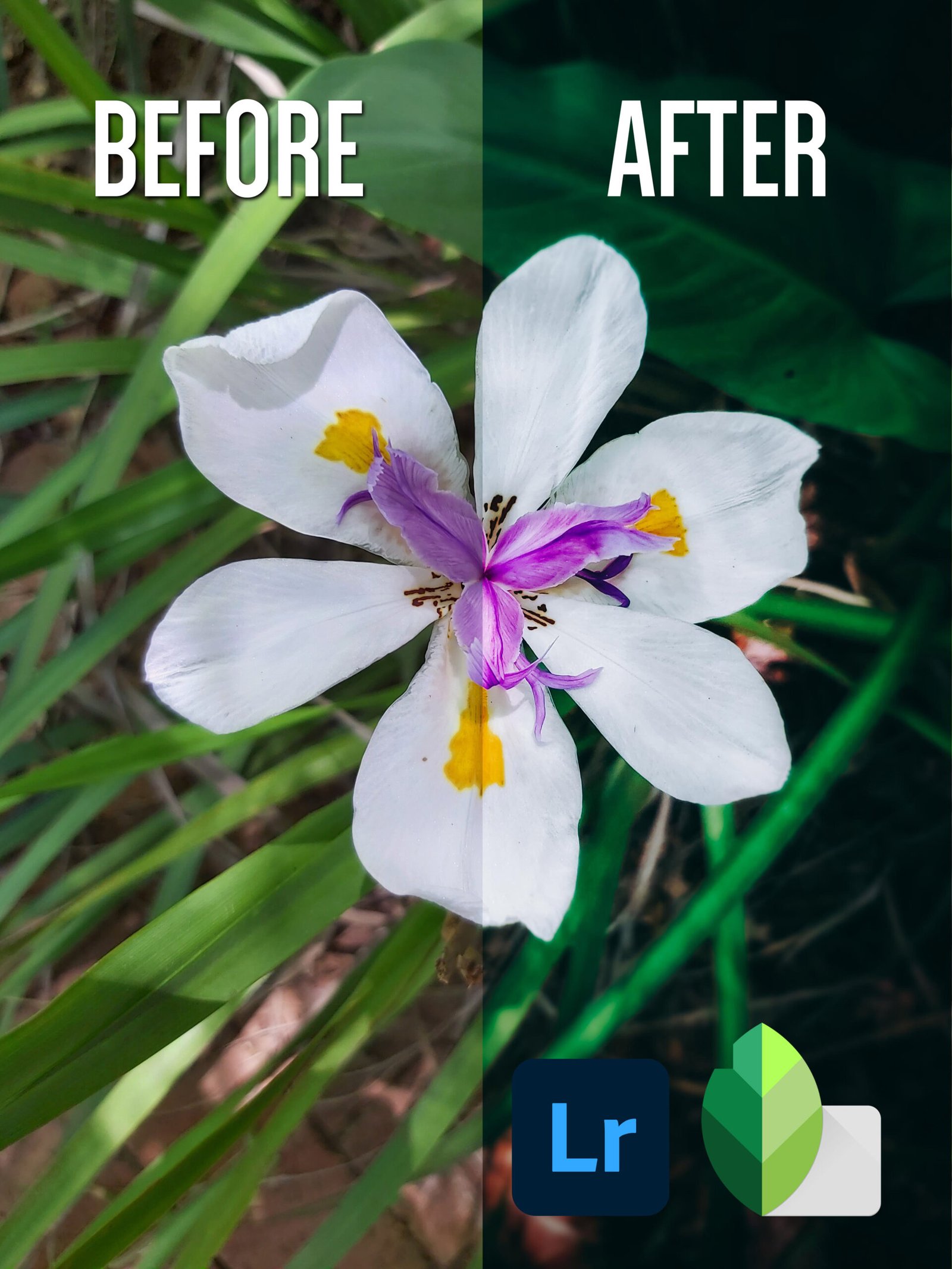
It isn’t always necessary to use complicated or expensive editing software to get the job done. Using your phone and free editing software can also do the trick.
Let’s begin.
Download Snapseed from the app store. (I like Snapseed because it’s simple and easy to use and provides wonderful tools to edit a photo.)
Import your photo from your gallery to Snapseed.
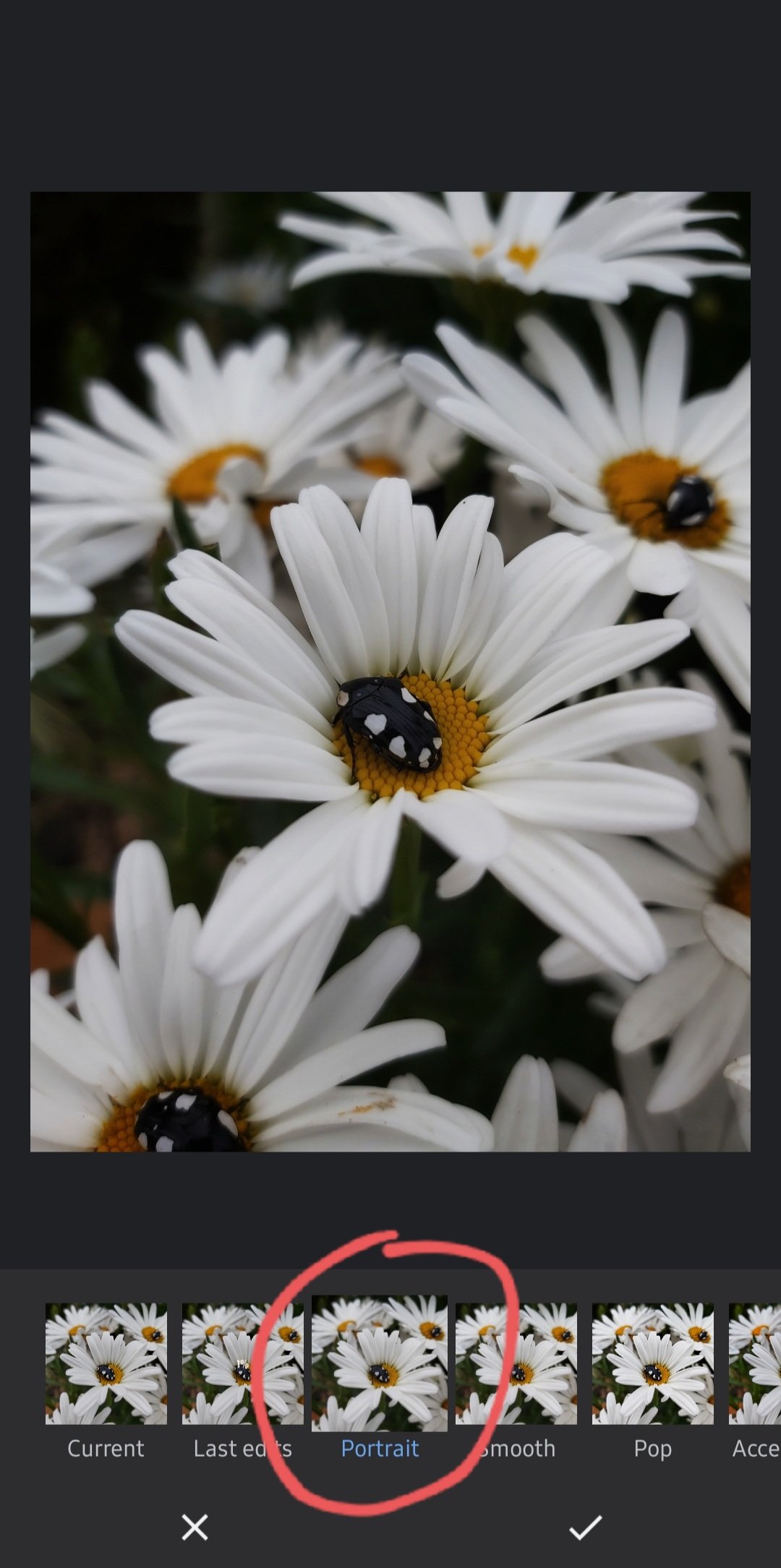
From Styles select Portrait as this will give the image a slightly softer look. Most smartphones tend to oversharpen their photos during post-processing, not sure why.
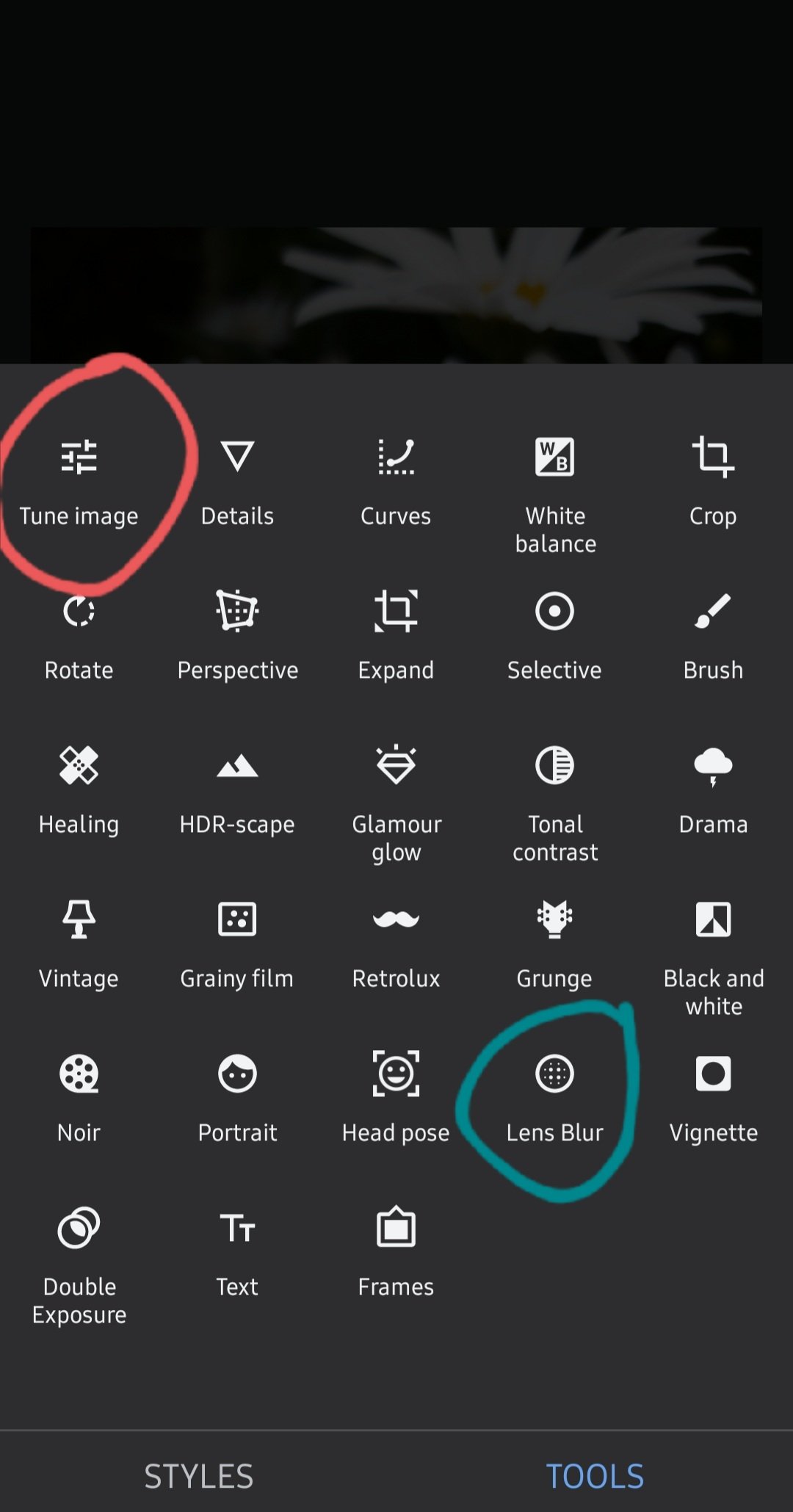
The settings we’ll be focusing on are Tune image and Lens blur. (Using these two tools are more than enough to get you started. We’ll get into the other tools in a different tutorial.)
Click on Tune image, and a series of settings will pop up with which you can play around with.
All of these photos were taken with a Samsung A70
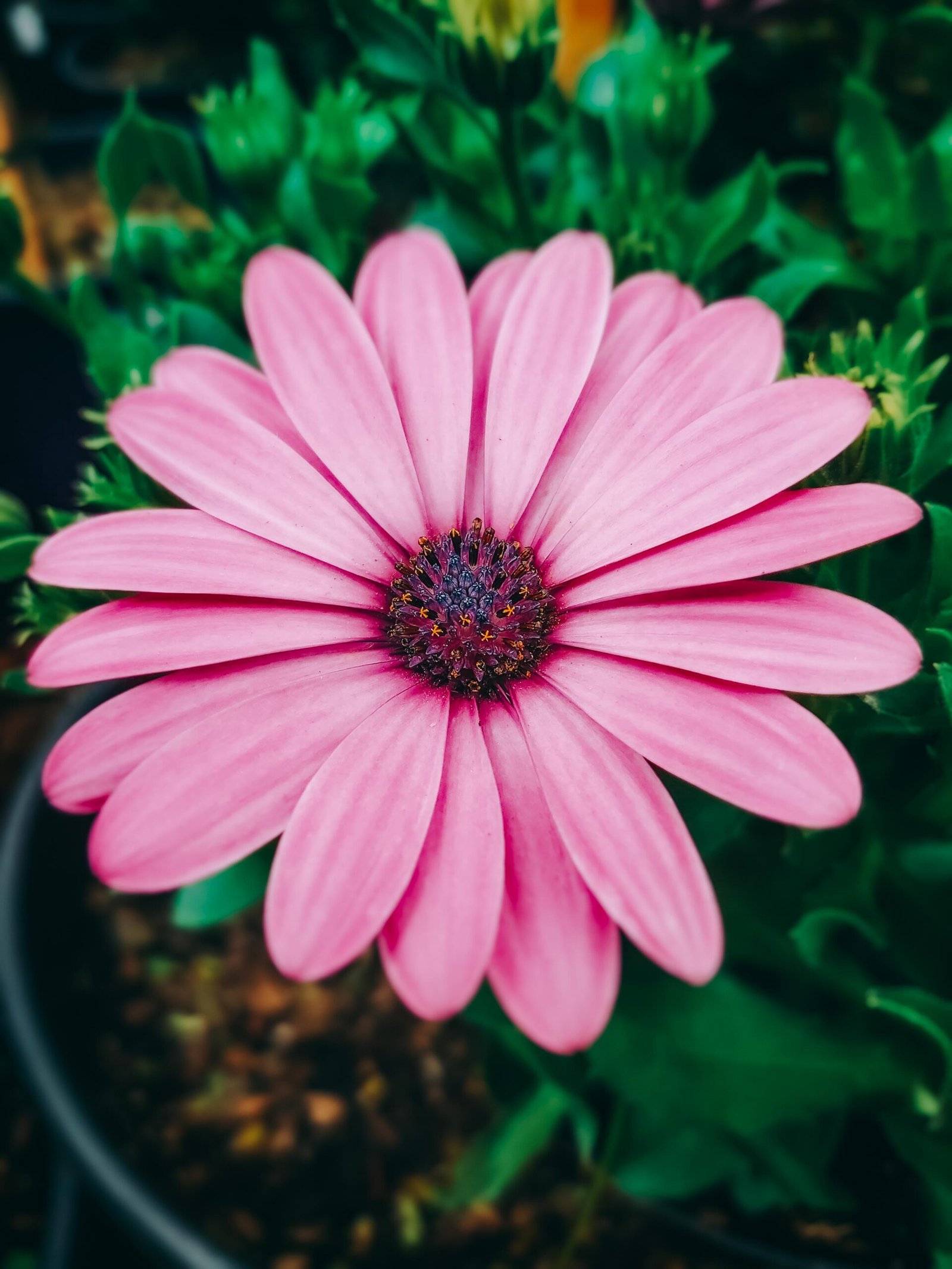
Photo 1
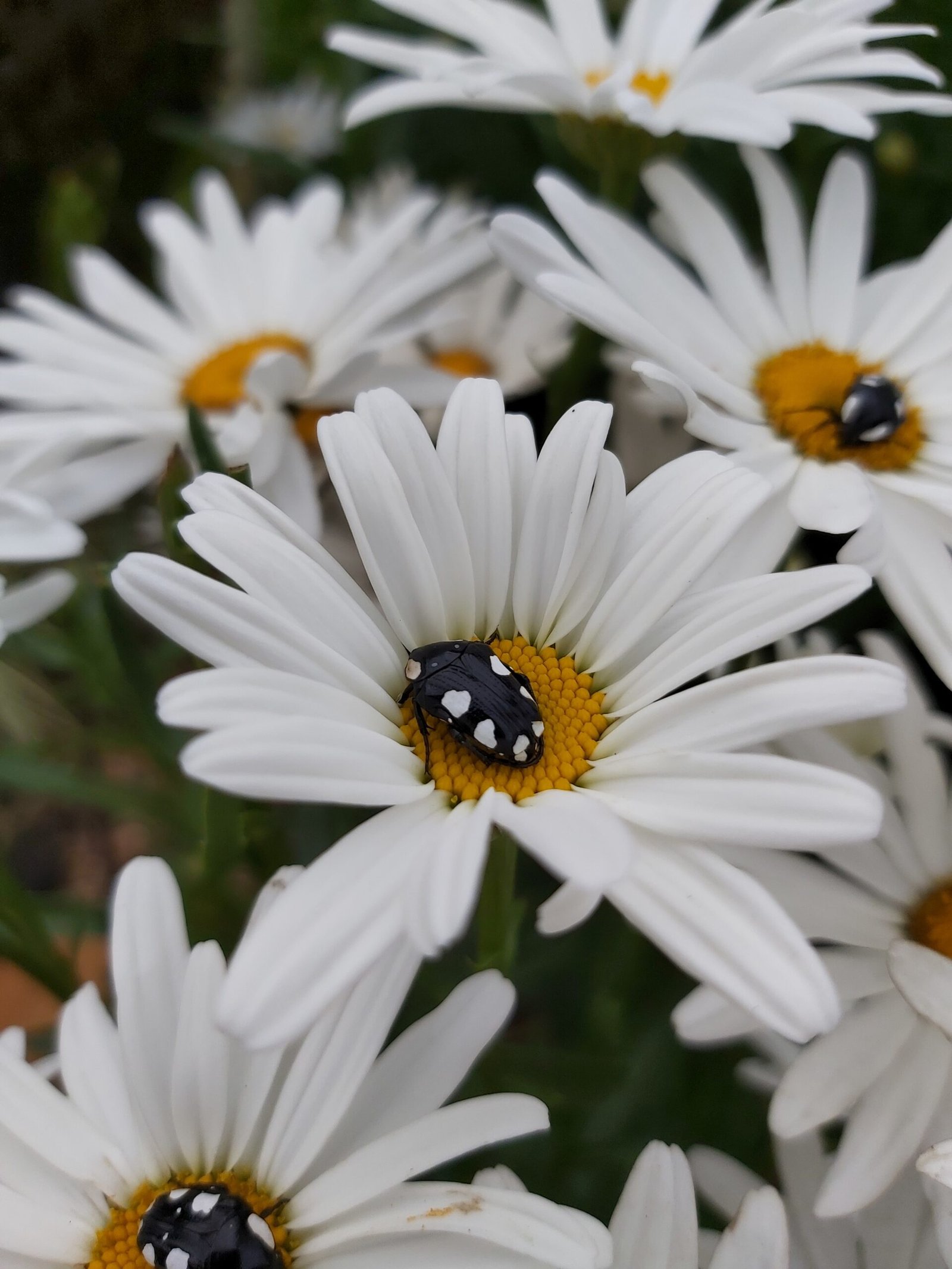
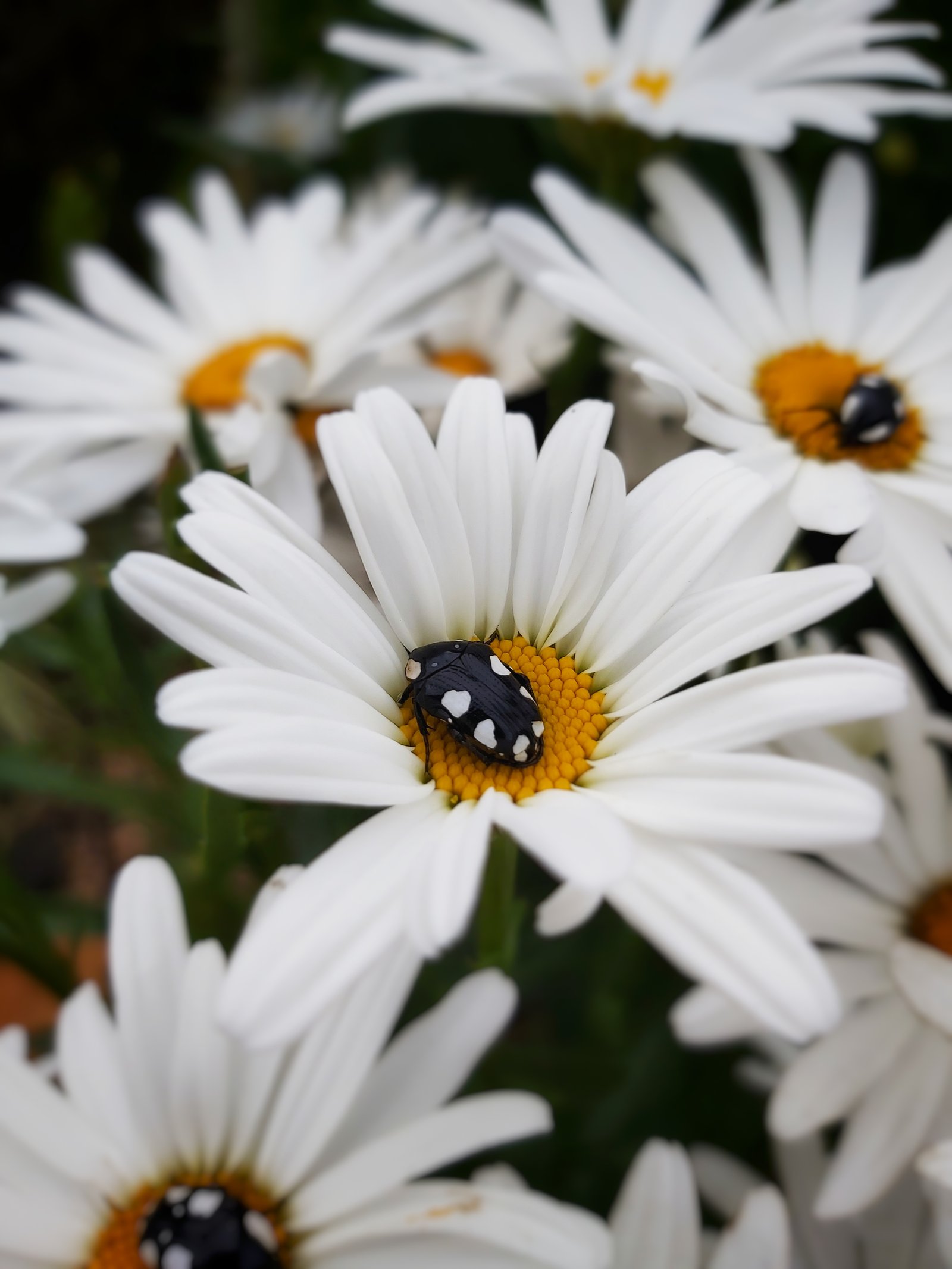
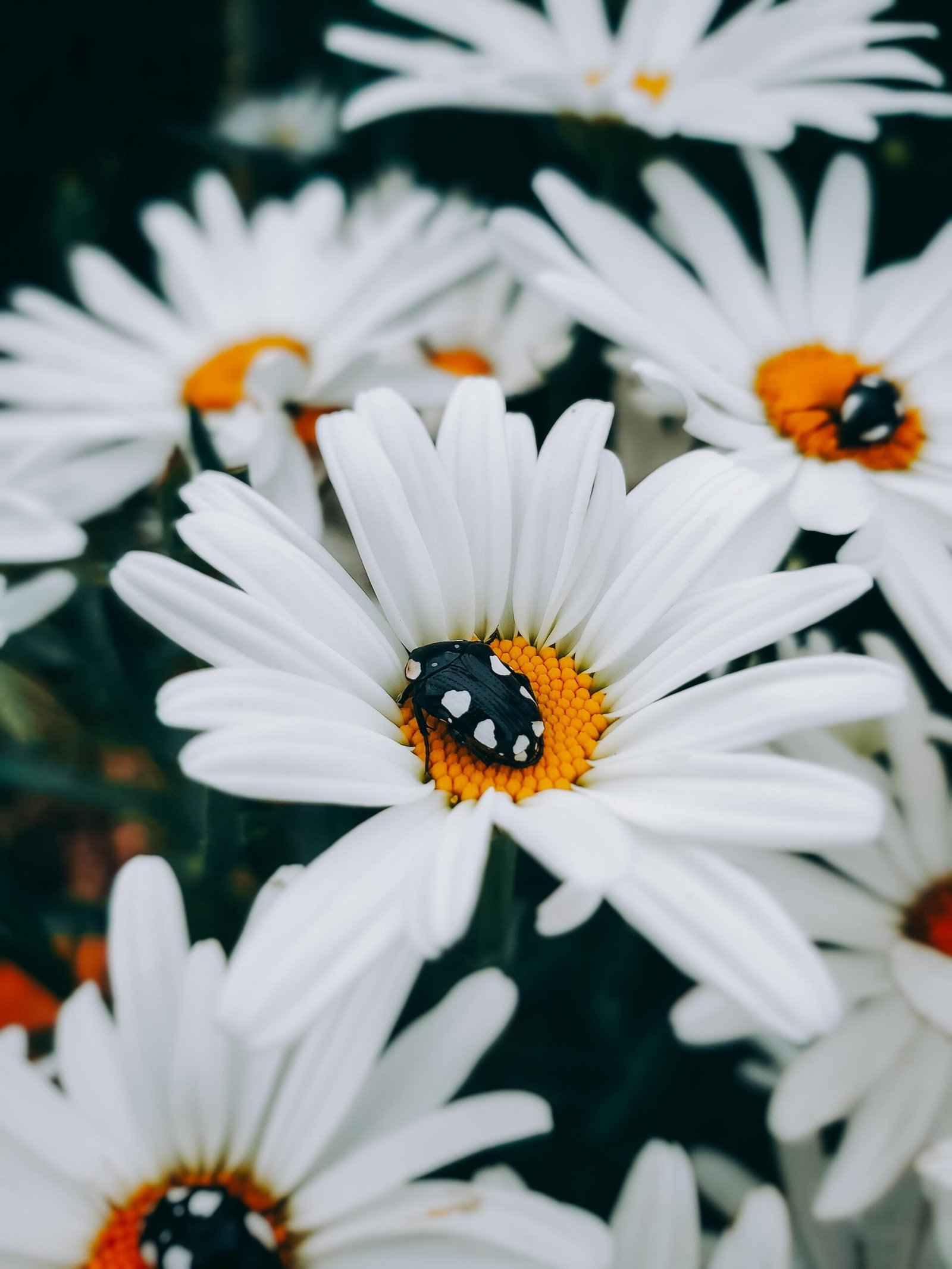
Settings:
Brightness +50
Contrast +20
Saturation +20
Highlights +20
Below is an example of how I used the blur setting to create my desired effect. You can pinch the circle to change the size and shape.
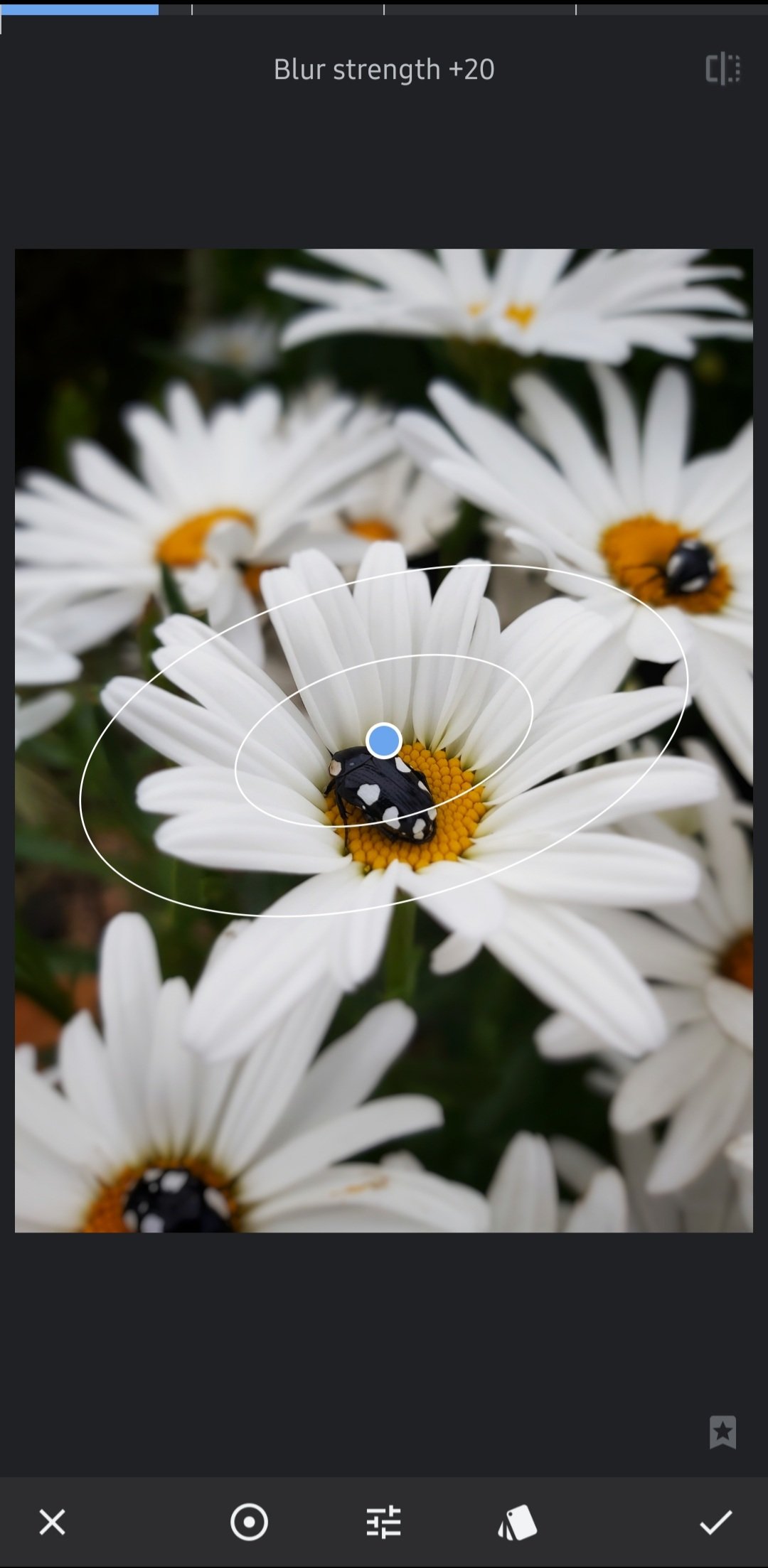
Blur strength +20
Transition +35
Vignette strength +10
To get the specific colour scheme I imported the photos into Adobe Lightroom for mobile and used my personal presets. They’ll be up for grabs soon.
Photo 2
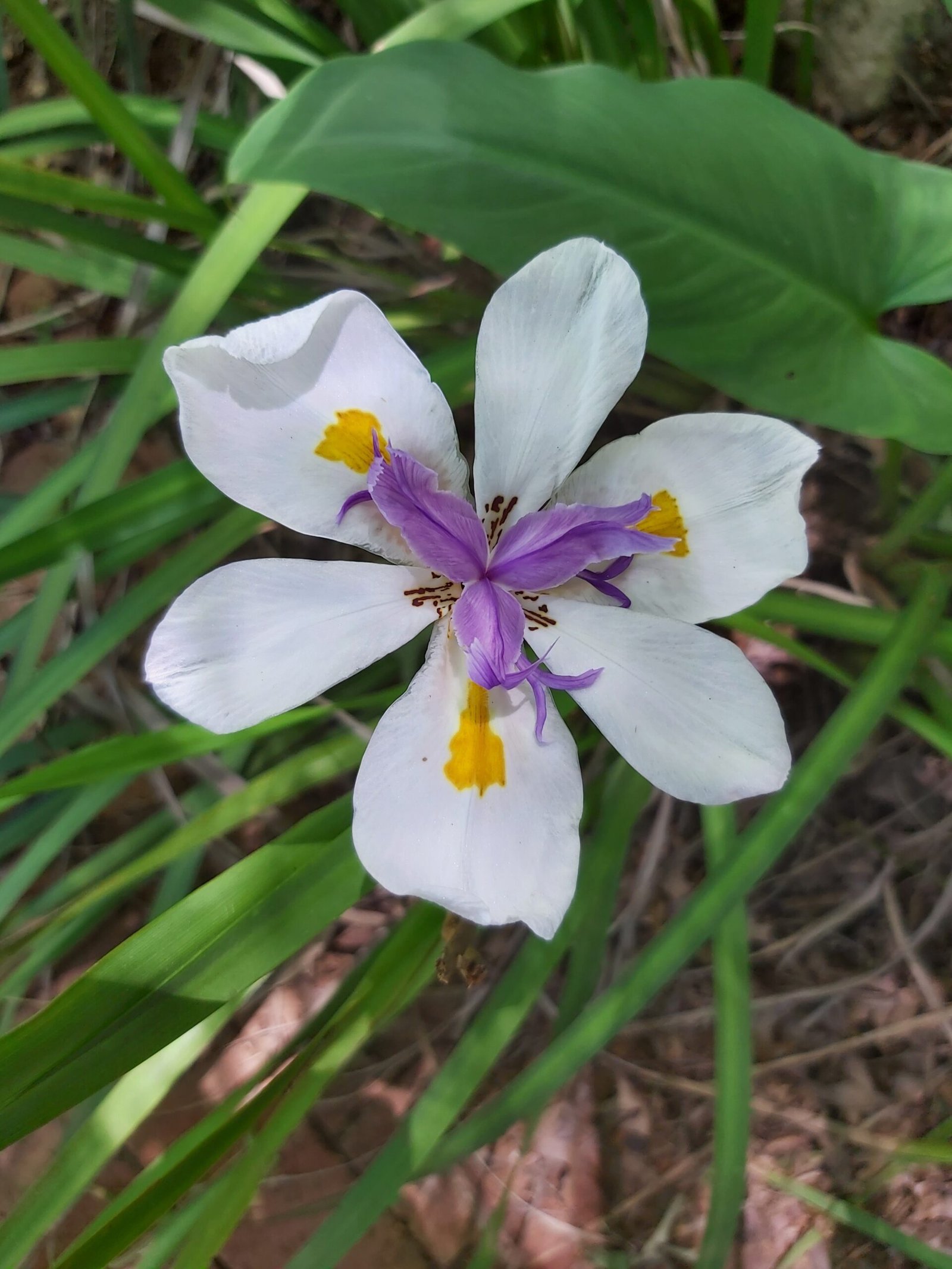
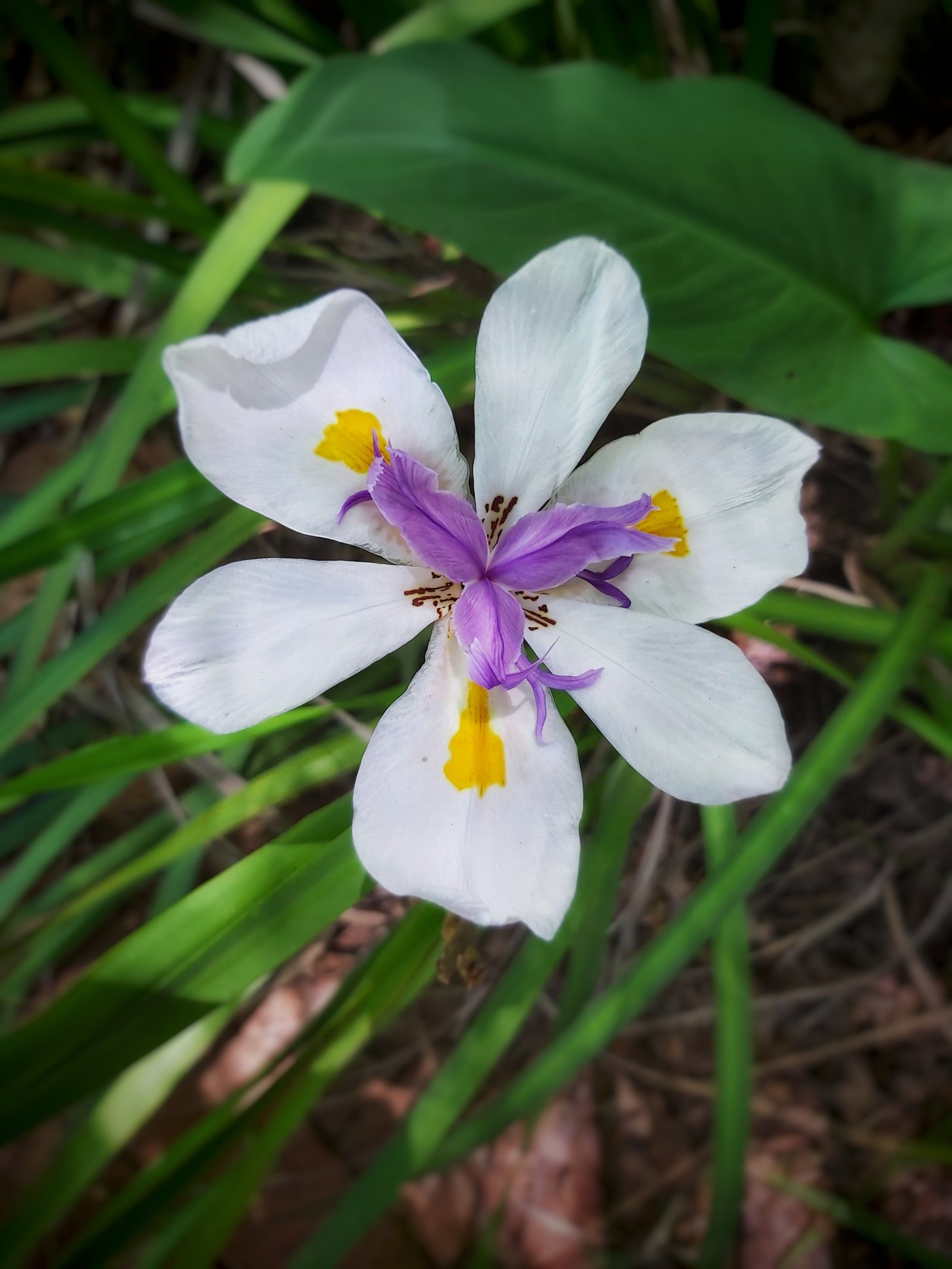
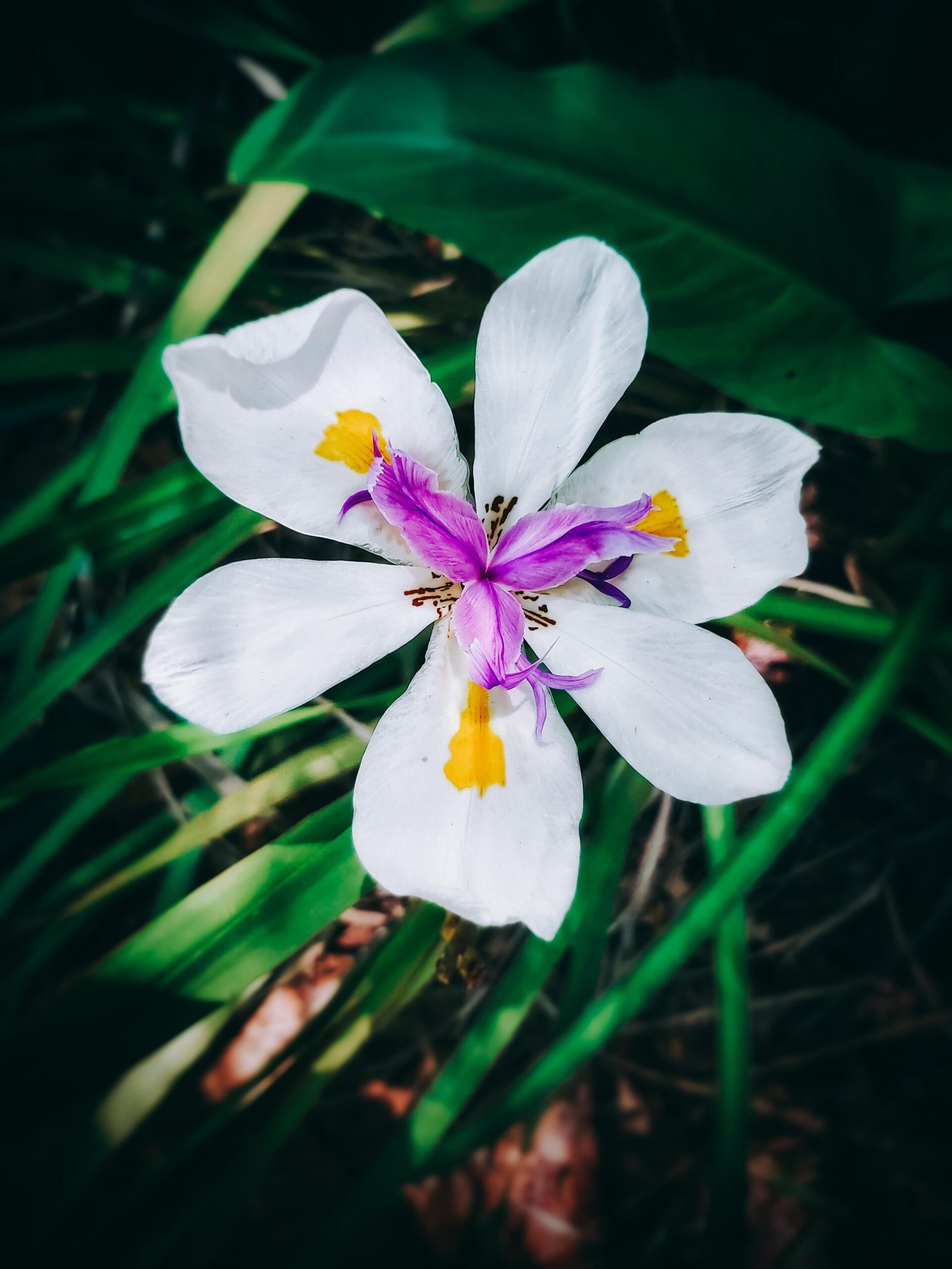
Settings:
Brightness +50
Contrast +20
Saturation +20
Highlights -50
Blur strength +20
Transition +30
Vignette strength +50
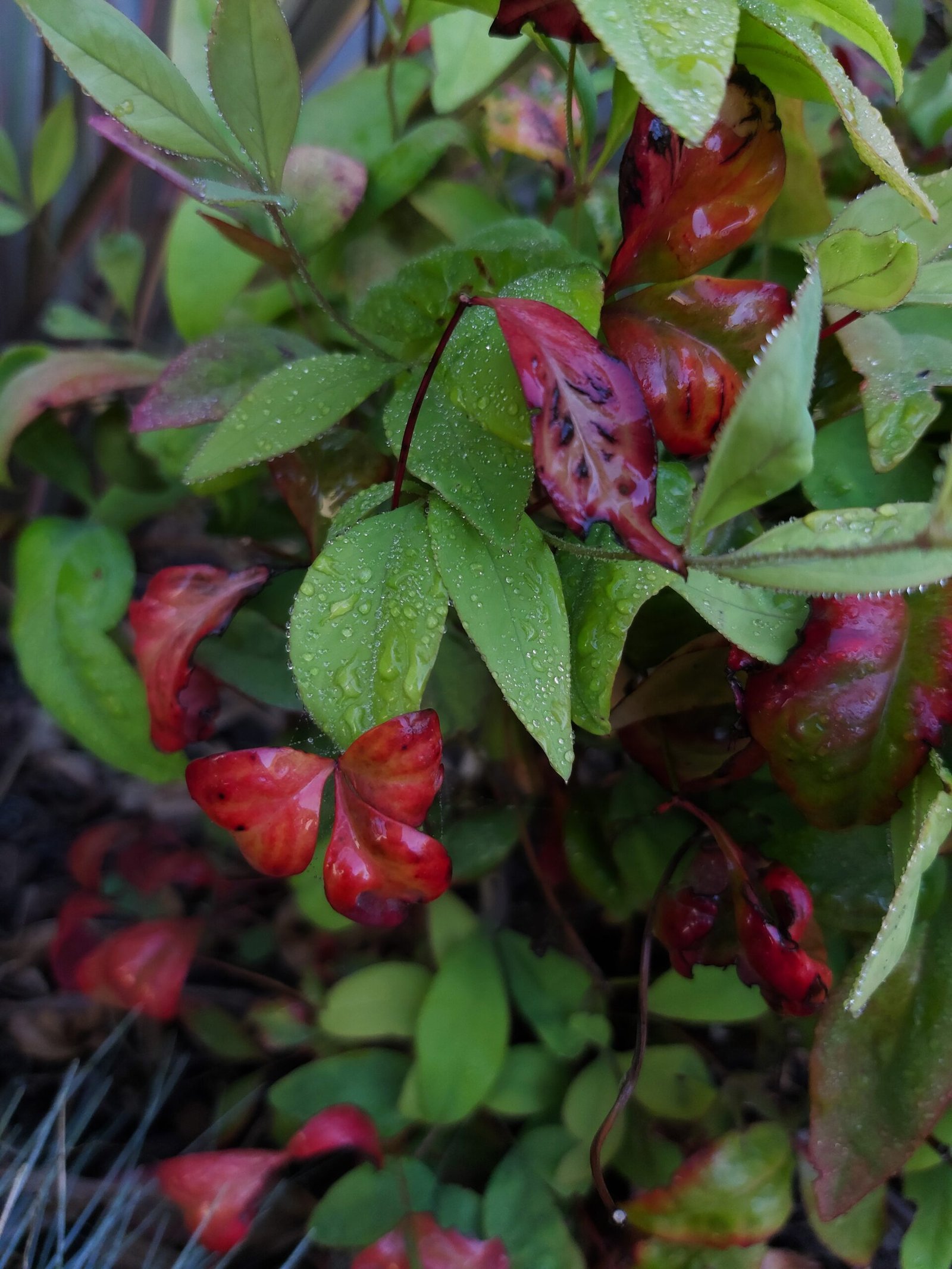
Photo 3
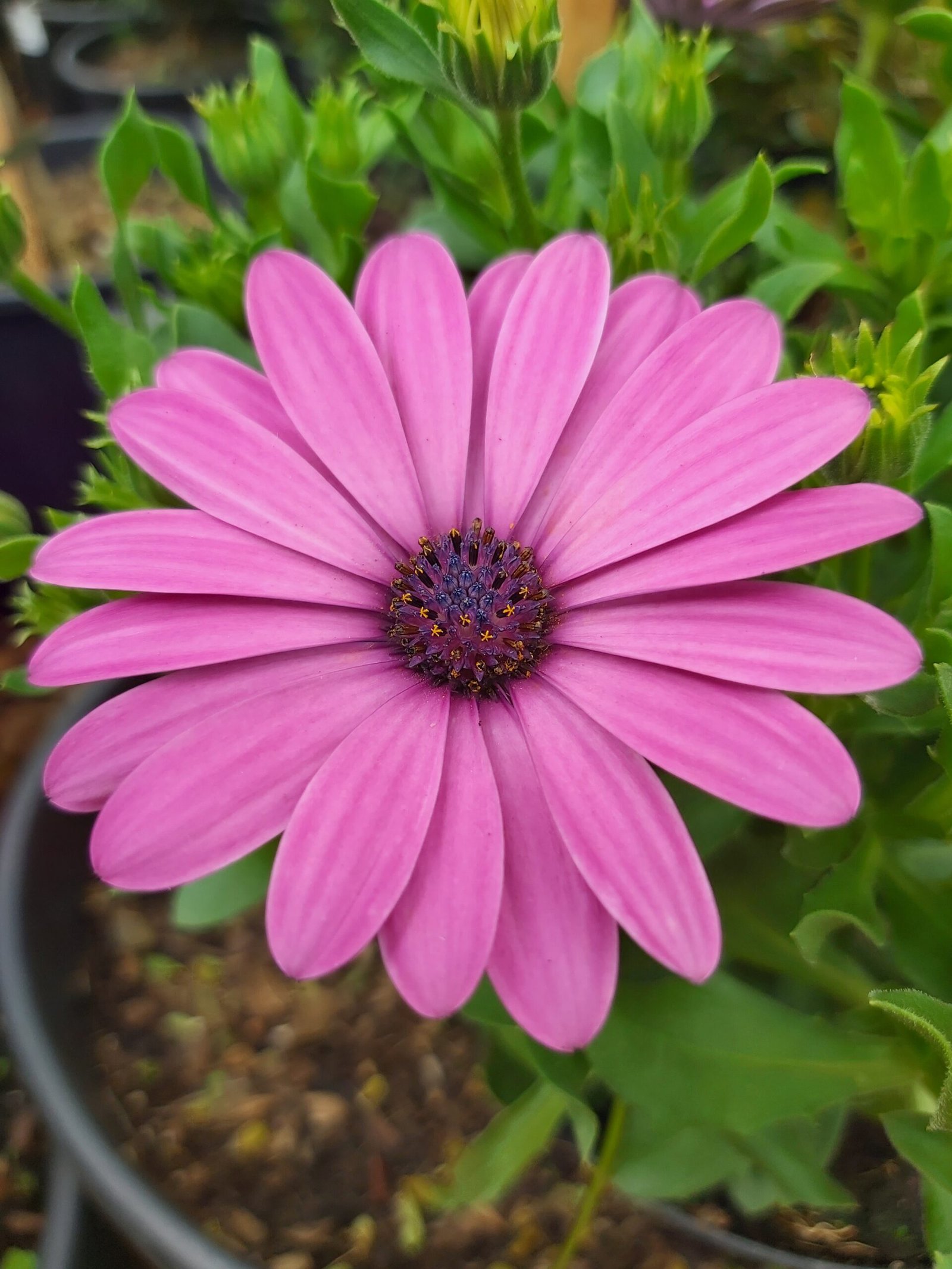
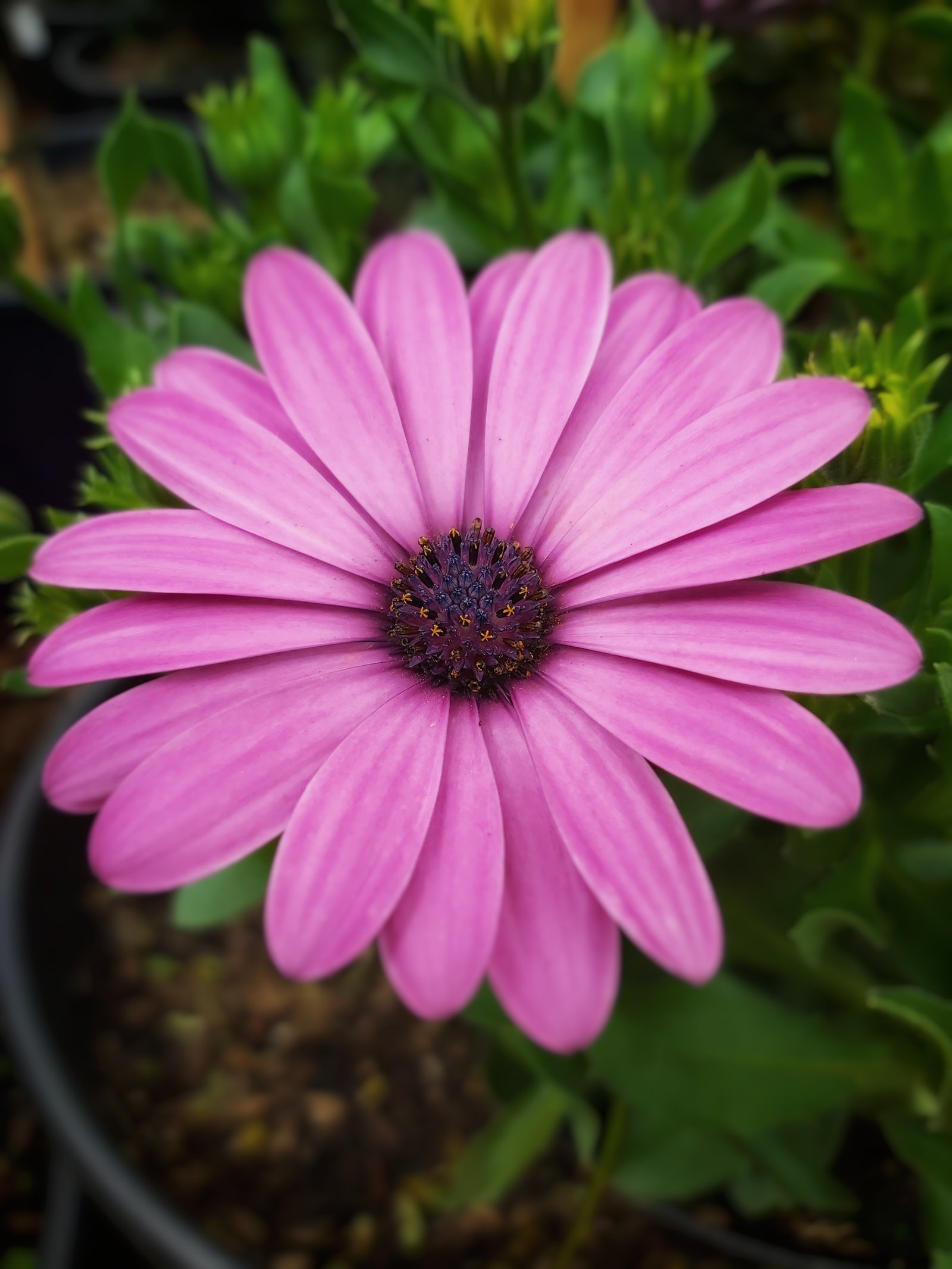
Settings:
Brightness -10
Contrast +50
Saturation +10
Ambience -15
Highlights +51
Blur strength +15
Transition +5
Vignette strength +60
Photo 4
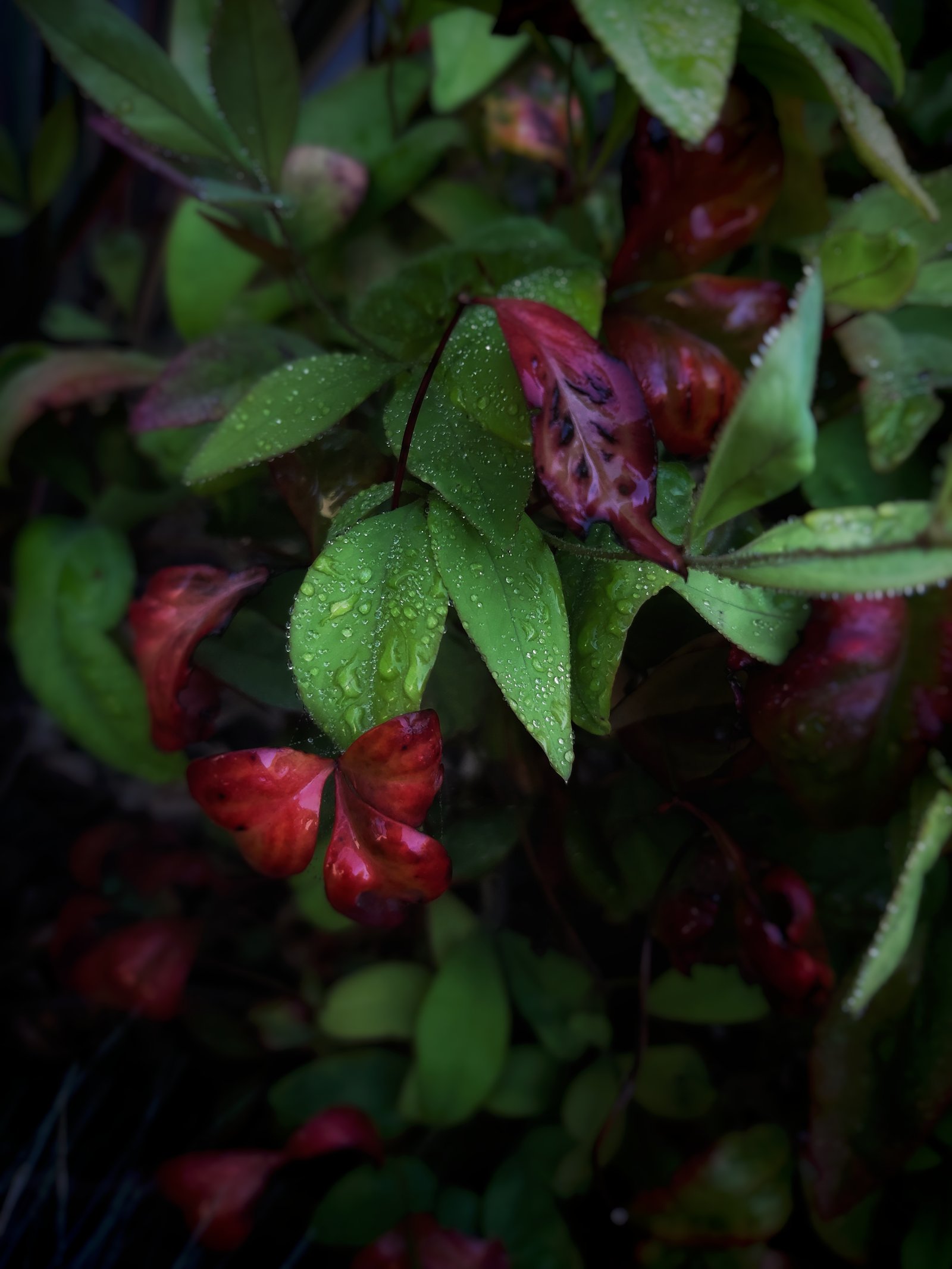
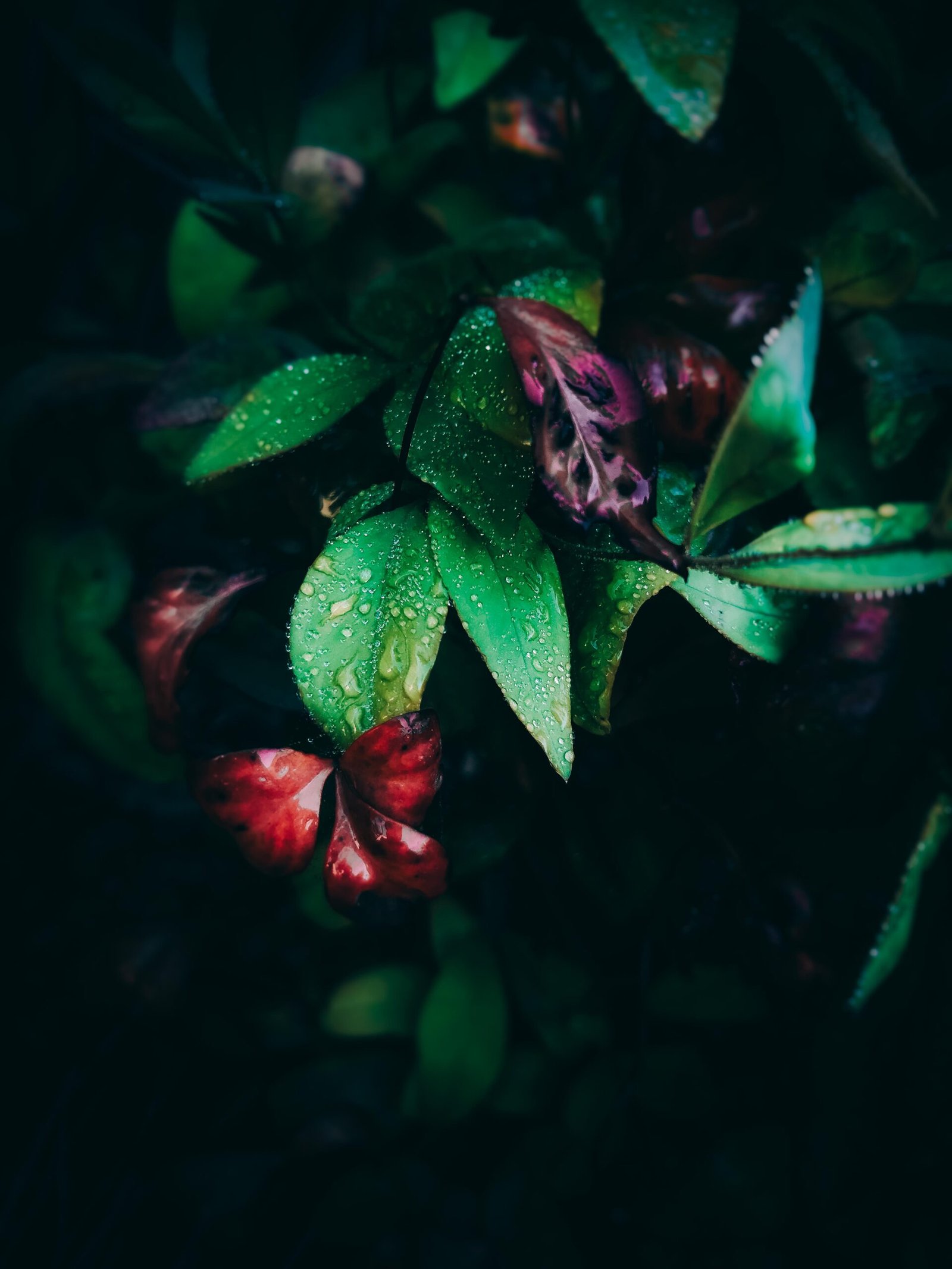
Settings:
Brightness +30
Contrast +30
Ambience -20
Blur strength +20
Transition +20
Vignette strength +20
And that’s it. Sweet and simple. If you liked it and found it helpful don’t just keep it to yourself, share it with your friends!
Categories
Wow. It’s so amazing.
Very interesting! I just occasionally crop my photos but, after reading your tips, and seeing the results, maybe I should experiment a bit more. Thank you
Thank you for the tips! I’m using Snapseed, too! Very user-friendly for someone non-techie like me!
These are really helpful, thank you!
Thank you for article!!! It was interesting to download the app and try it out. I will use it as a from of expression.
Beautiful
These are great! Snapseed is such a great app
Cool tips! Yes, smartphones do get everything in focus and sharp!
Thank you. I have shared this and will try it.
Snapseed is my fave editing app. Thanks for sharing your settings for the different effects!
That’s wonderful. The pink flower looks amazing
Absolutely amazing work!
Sal dit beslis gaan probeer! Dankie vir die wenke!
Groot plesier!
Thanks! I’m going to try this out!
Goodluck and have fun!
Awesome tips and apps
Really awesome tips
Glad I could help 🙂
Very interesting article I’m going to give this app a go. Thank you for sharing.
Goodluck and have fun! 🙂
Thank you For sharing your Amazing Tips……
Thanks for sharing all of the great tips and photos.
My pleasure 🙂